Have you tried it yet? There are some advantages to the new approach, but it is a bit of a shock! Adding text is easy, you can just type but adding photographs especially galleries is a bit of a challenge. I know there are lots of great guides out there such as How to Use the New WordPress Block Editor by WPBeginner and WordPress’s Working with Blocks, however I thought I would share a couple of things I have learnt this week.
By the way this post was going to be a Six Word Saturday but that proved impossible, still there are six tips and my title is six!
- It may seem obvious but took me a while to realise that every time you hit return a little + appears. The + is a quick way to add a different block whether that’s an image, an image with text beside or something else! You can also find + in the top left hand corner.
- If you are running a challenge or taking part in one, then check out reusable blocks. It is a brilliant new addition for inserting same text or images in future posts. You can make something reusable after you have created it by clicking on the 3 dots at the top of the lock – they appear when you move the mouse over the block.
- However not so brilliant is adding multiple photographs. This is going to take some getting used to. I recommend staying away from gallery which comes up first, and instead scroll down until you get to Layout Elements,here you will find blocks called collage (4 pics), masonry (lots in a wall effect), slideshow or tiled gallery (as pictured below). These are much better options and once you have used them once you will find they appear at the top of your blocks menu under most used.


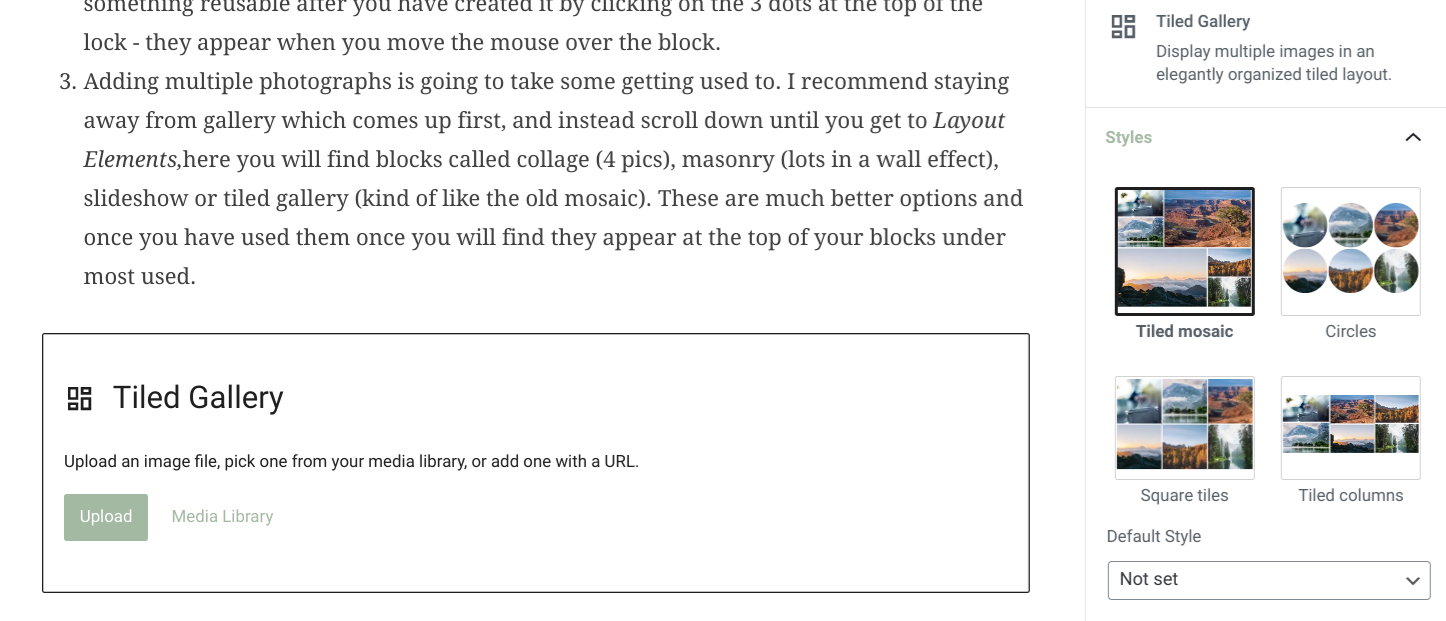

- The cog at top right are post settings. Rather confusingly when you click on this the words ‘Post’ and ‘Block’ appear. See picture above.
- Post relates to the many tasks we all do just before publishing such as scheduling time of publication, setting categories, tags and selecting featured images. If you are looking for how you adjust the text which appears on twitter when you post, that is now under JetPacks (green icon) and in the pre-publish check.
- Block are the extra settings for the particular block you are working in.
- More positive is what I found at the top of the screen to the right of bold, italic and links you will see a pull down menu option. Take a look! It has lots of really useful text options.
- And my final tip I cannot highlight enough! It’s essential to use ‘preview’ [top right] before publishing. Otherwise you, like me, might be shocked by how it looks on a mobile and tablet compared to a desktop. I spent another half hour after preview changing things!
I am learning something new every time I log in and play around with the new tools. So more tips may follow in the coming weeks. In the meanwhile I hope these few pointers prove useful, and if you have found any discoveries do share them in comments below. I think quite a few of us are going to need all the help we can get as we get to grips with the new block editor after Monday!
June UPDATE – as part of the July Squares challenge I will be sharing more tips on the extras that come with block editor in the meantime if you are looking for printable guides with step by step advice, check out Weekly Prompts developed by GC and SueW. Brian signposted me to these;
- Don’t Panic – A Simple Guide
- Don’t Panic – Classic versus Block
- Creating your First Gutenberg (Block Editor) Post
Another great place for advice and tips is Hugh’s How To page. He’s been sharing thoughts on Block Editor since March last year, and consequently is a great source of information. He has covered everything from slideshows and pingbacks to photo captions and working through the frustrations of Gutenberg. He’s also very kindly offered some tips such as creating a test post to test out the blocks on days when you have time to play. Check out the comments below for more wise words and great links from Hugh. In essence though he says;
My message is that it’s not hard to use. Just different. However, the benefits of using it far outweigh the negatives of using it.
Hugh W Roberts, june 2020
October update – They’ve been playing around with Block Editor over the summer and quite a few of the options I had got my head around have changed again. I wish they would stop tweaking it, anyhow here are some added thoughts which may be helpful. First though two photos so you know what I am about to refer to.
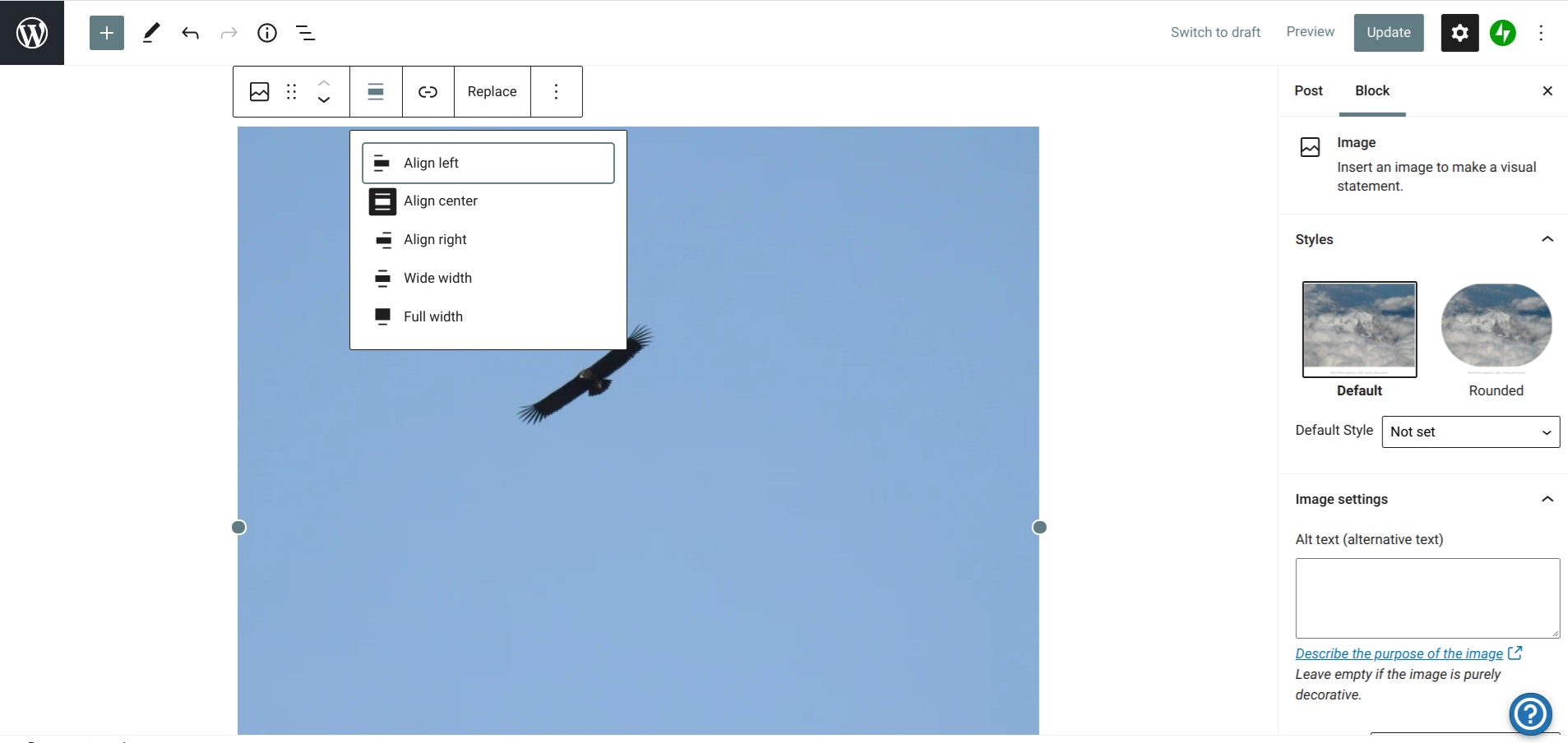

- There are two control panels for every type of block. The main one is on the right hand side of your screen. When you are working in a ‘block’ you will see a list of options on the right, or you can click on the block to bring up the options. However that is not the only control panel. If you hover the mouse over your block, a second control panel appears at the top of the block. Here the bold and italic for text now appear, it is how you can enter ‘pingbacks’ and it is also where you centre photographs.
- You may also notice when you hover over a block or click on it, two arrows in the first column in the box of symbols at the top. If you click on these you can move your block up and down the page. The first symbol tells you what type of block it is, and the six dots seem to keep that box of symbols there.
- To move photographs in a gallery you can click on the arrows which appear on each one.
- And finally if you just have a single image and then text underneath you may find that you need to add a spacer in between. Spacers are a block in their own right. The one they put in is enormous. You can make it smaller by moving the lines together, and once you have done that I recommend saving it as a reusable block. That way you can can have your own perfect spacer every time you need it.
 The life of B
Thanks for the tips. I’ve been using the block editor for a while now and I give it a resounding … it’s OK. I don’t write in the editor, which I think would drive me nuts, but copy and paste from elsewhere. Likewise, I don’t edit photos in WordPress but bring ready-to-go photos in when I put a post together. Since I mostly have fairly simple layouts, the photo issues aren’t that bad for me. But you’re so right about using Preview. I stopped doing that because Preview wasn’t available to me with the settings I mostly use on my laptop. Now it’s back and I should pay more attention, because more complex layouts are getting butchered on laptop and phone. Mind you, I have an no longer supported theme which might be part of the problem. Changing that is next on my things to do list (but has been for a while!).
LikeLiked by 1 person
Graham thanks so much for the feedback. Great to hear from those who have been using it for a while.
Good luck with finding a new theme. Spent a day on that last week!
LikeLiked by 1 person
You’ve learned some good things, Becky, thanks for sharing your experiences. One thing I like to use is the media plus text block, which works nicely for photo challenges 😁
LikeLiked by 1 person
Ooh yes I tried that for this post, didn’t work brilliantly but am definitely going to use in future. Great block
LikeLiked by 1 person
I have never used anything but the classic editor which they suggest will still be there, so I intend to just carry on using it. If it ain’t broke …
LikeLiked by 2 people
You won’t be alone going by the comments 🙂 and can understand why. Getting used to block editor isn’t easy. However heard now from three who have been using it a while, and all seem to prefer it now. So think I’m going to persist!
LikeLike
I thought I might try a pretend post on a defunct blog at some point and see how it goes.
LikeLike
Worth a try at least, maybe on a rainy day!
LikeLike
Yes, at my leisure! In the meantime, I have caught up enough to produce two posts a week till the end of June without writing another word.
LikeLiked by 1 person
wow that’s fantastic…..does this mean you might be open to joining in with daily squares again 😉
LikeLike
Depends what it is!
LikeLike
Think you’ll like it, you certainly will have plenty of shots in the archives
LikeLike
We’ll see then!
LikeLiked by 1 person
Hiya thought you might like to see this. Brian signposted me to it – great guides produced by GC and SueW on their joint site ‘weekly prompts’ https://weeklyprompts.com/2020/05/25/dont-panic/
LikeLike
Thanks! I’ll save that alongside your own very helpful post. Still using classic but I might give the new one a whirl before 2022. No one can accuse me of rushing into things😉…
Thought your #BlackLivesMatter post the other day was very powerful by the way. Well done you!
LikeLiked by 1 person
Thanks. White Fragility really hit home about my own language and behaviours over the years. Thought I was a non-racist until I read that, and the realised how many little things I just let slip by . . . . going to work hard to be anti racist
LikeLiked by 1 person
Aren’t we lucky to be faced with a different type of challenge? 🙂 I keep crashing it whenever I try to editing in HTML.
LikeLike
One way of looking at it!! Ooh you’re good editing in HTML, I get too confused these days by codes.
LikeLiked by 1 person
Once a programmer, always a programmer and I find (ok, I used to find) working with HTML handy for precision when adding certain things to a post/page. I’ve even delved into some CSS lately to enhance the look of my site 🙂
LikeLiked by 1 person
A skill I wish I had
LikeLike
My Corona isolation fogged brain cannot wrap around it. Thanks for trying. Give my best to GB
~Carol
LikeLike
I am trying to get into it! Thanks for your tips Becky!
LikeLiked by 1 person
Good luck! Learning from those who have been using it for a while, it seems it does get easier to use and they now like it 🙂
LikeLike
Mmmm, I am not so sure about it. I don’t know why they change things that work so well
LikeLike
They’re aiming for more of the business market 😦
LikeLike
That’s true!
LikeLike
You seemed to have explored it all! Will use your tips as a reference guide when required… so I’m not reading it now 🙃🤗
LikeLiked by 1 person
Cunning plan 🙂
LikeLiked by 1 person
Thanks for doing the hard work for us.
LikeLike
Glad it has helped
LikeLiked by 1 person
All I can say is that in 20+ years of putting stuff together for the web the new Block Editor is worse than the software I was using back in the 1990s. Clunky and unintuitive are its best features
LikeLiked by 1 person
I know so un-intuitive, it is very similar to another website design company – SquareSpace – many seem to love it but can’t see why 😦 just hoping frequent practice will make it easier
LikeLike
I used it exclusively for at least five consecutive posts before becoming so frustrated with it I swapped back to the classic editor. I briefly considered going back to the old days and writing my own HTML before realising it’s not really an option on a tablet so I would need some form of hardware upgrade.
LikeLike
oh help! Going to keep persisting for now . . . but think I might drop them a line via my business account to express concerns
LikeLike
I made a custom block (or whatever the name is) just to space the photos the way I want. I kept having to search for it and kept getting the message “unsupported block” but surely the editor shouldn’t have let me save it if it’s not supported.
LikeLike
That’s really not helpful, and agree shouldn’t allow you to save if it is unsupported 😦 aargh!!
LikeLike
But just because it’s unsupported didn’t mean I couldn’t use it. I get the impression that WordPress users are beta testers these days.
LikeLike
us bloggers certainly seem to be 😦
LikeLike
I didn’t change to the 2020 theme until it had been available for a while but I was still finding and reporting bugs only to be told they knew about the issue.
LikeLike
😦
LikeLike
Have you reported it as a problem? Might be worth doing so…..
LikeLike
I’ve given up reporting problems. When I switched to the new 2020 theme I found and reported bugs only to be told they knew about the issue. I reported issues with the WordPress app twice and both times they were trying to blame something else when it had been working before they updated the app.
LikeLike
Grrrr . . can understand why you gave up. Might just be worth trying again though. Thinking if lots of us raise issues today, they may listen. Or am I too much of an optimist!!
LikeLike
To be honest, I’m wondering if they’re trying to get away from being the “blogging company” because I keep seeing ad’s on Facebook for their web site building and hosting. I have to wonder if the block editor is aimed at people building a web site.
LikeLike
I definitely think they are . . they are attempting to compete with SquareSpace
LikeLike
OK, I haven’t even looked yet, and too many other things I need to do before Monday, so probably no posts early next week! I shall peruse this Tuesday and see how I get on…
LikeLike
If you initially continue with just your wordless images you’ll be okay xx
LikeLiked by 1 person
Oh, and surely the a Classic Editor is in WordPress.org, not our one
LikeLike
It says should be available to all?
LikeLiked by 1 person
Oh, OK
LikeLiked by 1 person
Lovely to chat earlier xx
LikeLiked by 1 person
It was, how are the veg??!
LikeLiked by 1 person
Mushrooms in garlic sauce bubbling away, aubergines and peppers roasting with chorizo and olives, salad made, left over red onion tarte tatin on table and now to grill halloumi!
LikeLiked by 1 person
Oooooh, delish!
LikeLiked by 1 person
It was!
LikeLiked by 1 person
Pleased to hear!
LikeLiked by 1 person
Hiya thought you might like to see this. Brian signposted me to it – great guides produced by GC and SueW on their joint site ‘weekly prompts’ https://weeklyprompts.com/2020/05/25/dont-panic/
LikeLiked by 1 person
Ah, thanks Becky!
LikeLiked by 1 person
For people like you, who enjoy a challenge and learning something new, it’s probably a grand thing. All I felt was dismay on reading this, and it could well be my swan song. But we’ll see 🙂 🙂
LikeLike
It did not feel grand yesterday! I just am not ready to stop blogging so am trying to focus on the positives . . . really hope you can find a way of coping with it. Add a single photo is relatively easy so hopefully we won’t lose you xxx
LikeLike
I don’t want to commit time to it, Becky. That’s the problem, and I have been so near to leaving the blogging arena that this might be the shove I need 🙂 🙂 Hate to just kwit though!
LikeLike
Totally understand. Yesterday I was shocked at how long it took me to create this post. Such a simple post . . . hope you will stay with reader at least xx
LikeLike
It’s an addiction. I’d have to wean myself away 🙂 🙂
LikeLiked by 1 person
hee hee, but is is good addiction as the community is amazing xx
LikeLike
I know! I love you all. Can’t afford pasteis de nata for everybody 🙂 🙂
LikeLiked by 1 person
lol! Suspect the goat will eat lots later too 😉
LikeLiked by 1 person
You can still use the classic editor! I think this is aimed more at people who want ‘proper’ websites rather than bloggers. If the classic editor goes then I may well go too.
LikeLiked by 1 person
Exactly! although chatting to Debbie yesterday it seems once you get over the shock it does actually become a better way of working. I’m going to persist!
LikeLike
We’ll hold hands and jump together, Jude 🙂 🙂
LikeLiked by 1 person
Thank you, Becky. I’ve been using it for a while but still make errors and get frustrated with galleries. You’ve discovered something I hadn’t found yet, and explained another thing. Brilliant! I’ll keep an eye out for your next post.
LikeLiked by 1 person
oh I am so glad this was helpful . . if you have any tips from the past few weeks do leave a comment and I will include them in the next post. I just wish I’d been sensible like you and started trying to use it weeks ago
LikeLiked by 1 person
Thanks for these tips, Becky. I’m not sure how things will work for me just yet, as I write in Live Writer and post from there. I’m expecting my posts to look rather rubbish in the beginning but I’ll persevere. The Featured Image was my stumbling block and you’ve covered that. In an odd way, I’m looking forward to the challenge, probably because I have a little more time on my hands right now. Eventually, like everything else, we’ll get used to the new norm!
LikeLiked by 1 person
Hopefully it will work fine . . at least you will not be cursing block placement like the rest of us!! And so glad mentioning ‘Document’ has helped find featured image.
LikeLiked by 1 person
Great tips, especially the one about reusable blocks.
LikeLiked by 1 person
Now that’s one of the features I really do welcome!
LikeLiked by 1 person
But we already have copy post which is what I use for challenges.
LikeLike
I know that but I like the way this new approach just does sections. Or may be I’m trying to see the positives!!
LikeLike
Mmm… I don’t know. I tried the block editor when it first came out and hated it. This one seems even more complicated. I understand that you might want different layouts if you have a Web site but for blogging? If WP enforce this they’ll lose people.
LikeLike
It is complex when you first start, but once you get your head around a few of the basics – which I have after a couple of plays – I can see potential benefits. However like you I wish they were not enforcing this on the blogging community, it just doesn’t make sense for us.
LikeLike
PS if you haven’t already make sure you backup everything before Monday just in case!
LikeLiked by 1 person
Its insightful. Though I am using it by H&T Method. Thanks for telling where to look for what.
LikeLike
Glad it’s been helpful
LikeLiked by 1 person
Thanks for the tips Becky.
LikeLiked by 1 person
Hope they help. Certainly isn’t intuitive the new approach. Hopefully though it will get easier to use as we get used to it.
LikeLike
I have found it more complicated than necessary. Annoyingly the new version isn’t compatible with Grammarly, which I use.
LikeLike
I just don’t understand why they are making bloggers use this as it is clearly not designed for bloggers 😦 and grrrr re grammarly for you.
LikeLike
PS if you haven’t already make sure you backup everything before Monday just in case!
LikeLike
Becky, I did a back up on Friday. I thought it would be a wise thing to do.
LikeLiked by 1 person
Excellent – did the photo download work ok? Mine has just stopped every time this morning
LikeLike
Haven’t even checked. Crikey just took it for granted that it would all be done.
LikeLike
It seems to be two separate downloads, but I could be misunderstanding the process. When you check could you let me know xx
LikeLike
Previous downloads have always been just one. To be honest I’ve never unzipped them to check. Will do tomorrow if I can x
LikeLiked by 1 person
thanks x
LikeLiked by 1 person
Becky, I have decided to carry on doing a copy/paste of some posts to OneNote. Takes time though at least I can fully see them. Will still do the zipped version. Yes, my last one came in two sections. Hope you were able to back up your blog posts x
LikeLiked by 1 person
Still trying to back up the photos!!
LikeLike
Thanks so much for this Becky. I am terrified of block editor. I tried it once before when it was first annoounced and couldn’t get my head round it at all. I’ll give it another go at the weekend (Really? Stay inside and battle with a computer when the weather’s so wonderful? I think not…), but blogging’s meant to be fun, and if it ceases to be fun, well, it’ll have to go.
LikeLike
I know I felt that way too when I first tried SquareSpace (which is very similar to this) and even now I struggle.
However I think it will get easier if we all play and share tips. Maybe we can ask the goat later!!
PS if you haven’t already make sure you backup everything before Monday just in case!
LikeLiked by 1 person
Erm, I’m being super-dim here. How do I back my blog up?
LikeLike
Not being dim at all . . . WordPress don’t make it easy to find. If you open WP admin (old way of managing blog) and then look for tools you will find an option to export. Export and that’s the back up.
Once it has finished exporting it will send you an email, and then you download from that email. I try to do this every couple of months although I am struggling to export the photos. Just stops after a few minutes 😦
LikeLiked by 1 person
Thanks for that. And you’re right. I’ve done the post-exporting, but photos just pack in. If they’d tell you what, if anything, they’d completed there would be a way forward. But there doesn’t seem to be . Grrrr.
LikeLike
That helps to know not just me . . last time I reported it they went on and on about my PC settings and bandwidth. Well as I have cable and a great laptop doesn’t make sense . . I think I will raise a complaint again
LikeLiked by 1 person
I’ll do that too. Though in my case, I only have average equipment.
LikeLike
Do complain . . .hoping the more of us that do the more likely they will sit up and listen!
LikeLike
I’m glad I’m not the only one who is not enjoying this new format. I’ve just completed my second post using the block editor and I’m not fond of it at all. I suppose it’s because it’s new and challenging but I prefer the old way. One thing I didn’t have a problem with was the gallery. It worked fine the first time. Thanks for these tips though. I’ll be referring to them when I do my next post.
LikeLiked by 1 person
Definitely not an intuitive approach. I think it will get better but just wish they’d allowed us to continue using the previous version rather than only offering classic.
Make sure you backup everything before Monday just in case!
LikeLike
What’s happening on Monday?
LikeLike
I truly hate the block editor. If this is going to be the only choice, I’m not going to join the party. Much as I love blogging, I think that editor is wildly over-the-top of any normal blogger and probably even for a business blog. Did you know they are also changing our data base too? At the same time? What could possibly go wrong?
LikeLiked by 1 person
I know it’s definitely not designed with bloggers in mind, it’s very similar to SquareSpace.
I’m going to persist though!
Did you know you can keep using classic editor?
LikeLiked by 1 person